Frequently used GIS functionality can be accessed in the GIS Layer Manager box by selecting a GIS layer from it and then right-clicking. The following "Right-click Menu" will appear from which a GIS function can be selected:
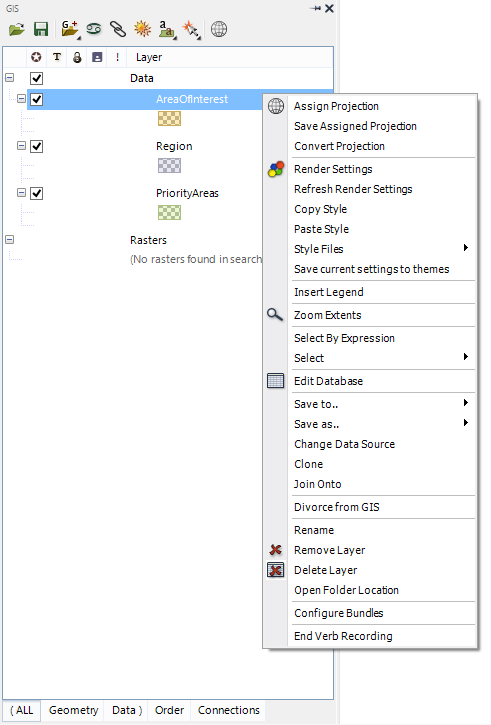 .
.
•Refresh Render Settings (only accessible from this right-click menu)
•Copy Style (only accessible from this right-click menu)
•Paste Style (only accessible from this right-click menu)
•Insert Legend (only accessible from this right-click menu)
•Select (only accessible from this right-click menu)
•Save to (only accessible from this right-click menu)
•Save as (only accessible from this right-click menu)
•Change Data Source (only accessible from this right-click menu)
•Clone (only accessible from this right-click menu)
•Divorce from GIS (only accessible from this right-click menu)
•Rename (only accessible from this right-click menu)
•Delete Layer (only accessible from this right-click menu)
•Open Folder Location (only accessible from this right-click menu)
Note some functionality can only be accessed from this right-click menu (as indicated above).