The integrated CAD menu item gives access to Albion CAD functions, via the following (note, all Albion CAD menus are integrated vertically under the CAD menu item of the technical program - see below the breakdown and links to guide you to the standard Albion CAD function description):
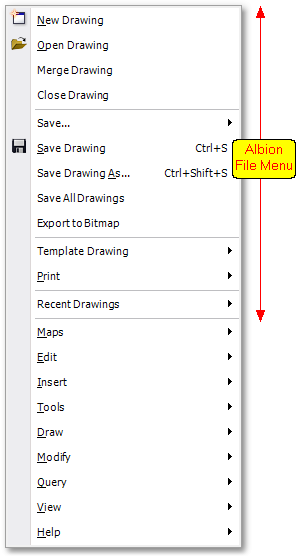
Integrated Albion: File Menu
The Albion File main menu item gives access to file handling functions, via the following sub-menu items:
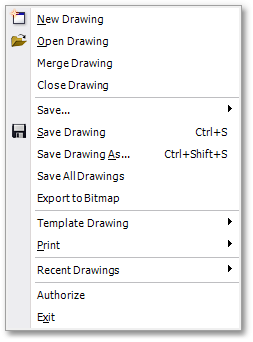
•Exit
Integrated Albion: Maps Menu
The Albion Maps main menu item gives access to background maps to be loaded in, via the following sub-menu items:

Integrated Albion: Edit Menu
The Albion Edit main menu item gives access to editing functions, via the following sub-menu items:

•Undo
•Redo
•Copy
•Cut
Integrated Albion: Insert Menu
The Albion Insert main menu item gives access to functions for inserting objects, via the following sub-menu items:
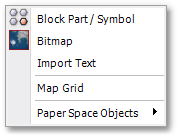
Integrated Albion: Tools Menu
The Albion Tools main menu item gives access to useful data processing tools, via the following sub-menu items:
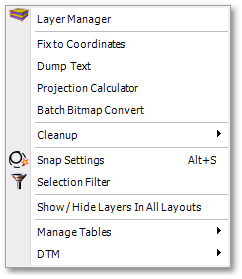
•Show / Hide Layers in all Layouts
•DTM
Integrated Albion: Draw Menu
The Albion Draw main menu item gives access to drawing functions, via the following sub-menu items:
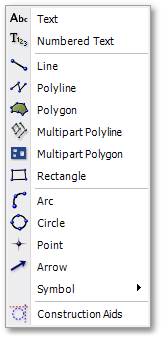
•Text
•Line
•Arc
Integrated Albion: Modify Menu
The Albion Modify main menu item gives access to functions for modifying objects, via the following sub-menu items:

•Move
•Crop
•Split Lines at Segment Length
•Trim
•Order
Integrated Albion: Query Menu
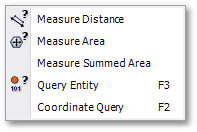
The Albion Query main menu item gives access to querying functions, via the following sub-menu items:
Integrated Albion: View Menu
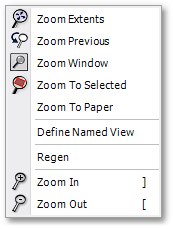
The Albion View main menu item gives access to view controlling functions, via the following sub-menu items:
Integrated Albion: Help Menu
The Albion Help main menu item gives access to the integrated Albion help facility, via the following sub-menu items:
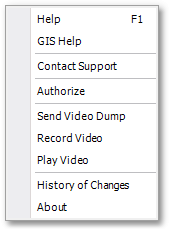
•Help: Opens the Albion CAD Help file (*.chm). This is an electronic help system with contents page, index key words and search facility to easily browse and find information on all CAD related topics of Albion.
•GIS Help: Opens the Albion GIS Help file (*.chm). This is an electronic help system with contents page, index key words and search facility to easily browse and find information on all GIS related topics of Albion.
•Contact Support: This is an internet link to the GLS Support website. Here you will find additional help documentation, and can visit the user form to get help from the GLS team and other experienced Albion users.
•Send Video Dump: Use this function to email the recorded video file (*.albvid) of the Albion problem to the GLS Support team. The steps to record the video are described below.
•Record Video: This is an ideal tool to capture a possible problem that occurred (or questioned arisen) during an Albion session. Simply click the Record Video menu item to start the recording process. Hereby screen-shots will be taken throughout the session. Click on the Stop button (as shown below) to end the recording and at the ensuing Save As file dialog box specify a file name for the recorded Albion Video (*.albvid) file. This video file can then be emailed to the GLS Support team, as described above.
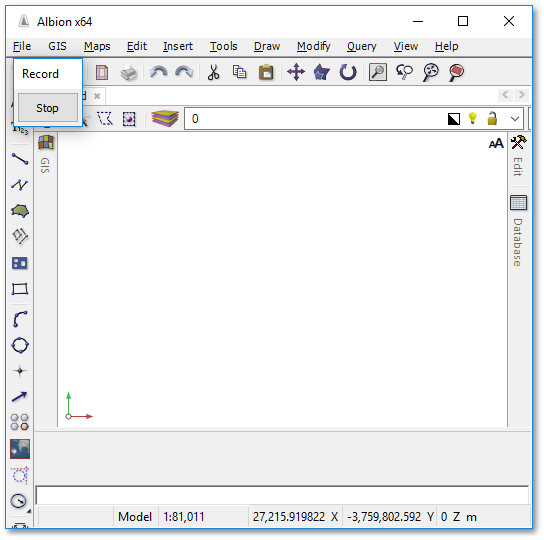
•Play Video: This function plays a recorded Albion Video (*.albvid) file. Alternatively, you can simply drag and drop the video file from the stored file location to the active Albion environment. (Note the playback of the video will mostly be done by GLS Support team members. The user should actually only be able to record the video).
•History of Changes: Takes you to the GLS website at a section that lists chronologically all the Albion versions with a short description of the changes/enhancements.
•About: Opens a pop-up box containing information on the user's current Albion program such as:
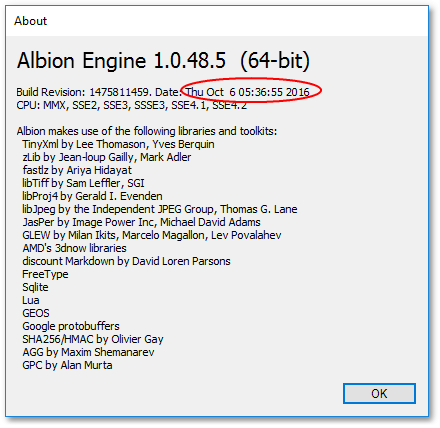
oIn the About box, on the fist line: the version number and whether it 64 bit (or 32 bit)
oOn the second line (marked by the above red circle): The version date.
See Also