If you had any problems at this stage, simply close the drawing select CAD > Close Drawing, not saving changes. Then select CAD > Open Drawing, and select HydroSWMM - Tutorial Drawing_fixed_backup.abd.
As a first step towards modelling the system displayed in the backdrop drawing, select Manage Models > Quick Start from the main menu. This will open the Quick Start window which was displayed at start-up. Click on the Create new button. When the file browser appears select the desired destination (we suggest that you select your user folder Documents\GLS\HydroSWMM\) , and type in a file name (e.g. “HydroSWMM - My Tutorial Model”). When you are done click on Save.
Before the model can be shown, a geodetic projection needs to be set. The following form will be shown.
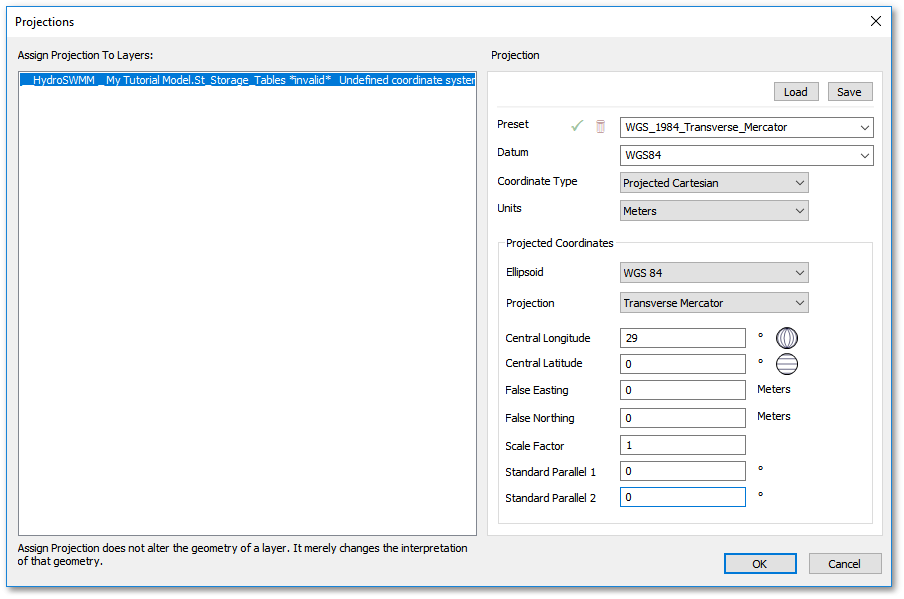
You will notice that the newly created empty HydroSWMM model will have been set based on the information from the background drawing.
Should the HydroSWMM model show an “Undefined coordinate system” it must first be resolved. For this exercise, lets assume the information was not valid. Click on the Load button at the top right, and select the Documents\GLS\HydroSWMM\Albion\Projections\WGS84-29_Projected.prj file. This will load WGS_1984_Transverse_Mercator (29 degrees east) projection. Alternatively enter/select all the values in the right-hand pane until they match the screen-shot above. The input values displayed in the screen-shot above are merely one of many sets that can be chosen. It is advised that you study the Albion tutorial for a more detailed explanation about projection settings.
After you have selected or defined the projection for the model click the OK button.
A new empty model will be created and its various layers/tables shown in the GIS Layer Manager. A set of tables relating to valves, pumps, pipes, junctions and sources has been created. Before starting to capture the model elements and in the process population the database tables, we will define some general settings.