Models can be created or loaded either by using the Quick Start box, or via specific Manage Models sub-menu items, viz. Create Model and Load model:
• Quick Start (or alternatively via Manage Models > Quick Start) opens the Quick Start box to create a new model or select a model to load in from a list of previously loaded models. The Quick Start box also shows information on program version such as version date, the number of links and enabled modules.

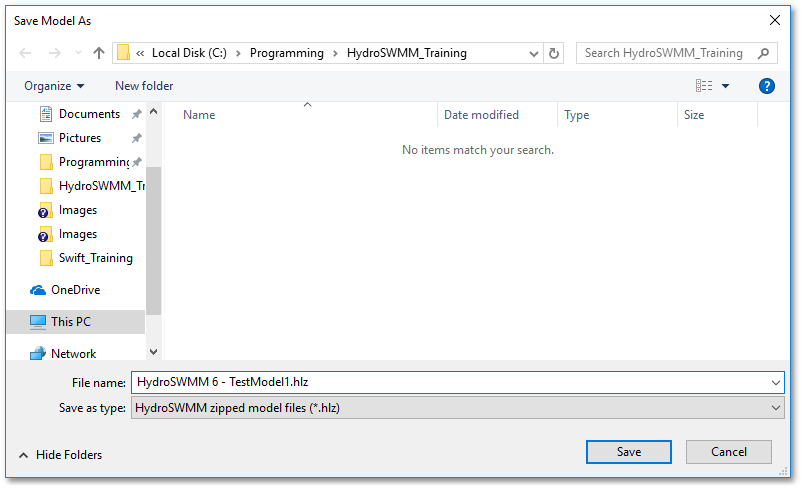
oA new model can be created by clicking on the Create new button. A Save Model As Windows dialog box will appear to specify the new file name (and path) and file type such as .hlz (standard HydroSWMM zipped model file format) or .hydroslt (HydroSWMM normal model file format). When finished, click on the Save button of the file dialog box.
oA HydroSWMM model can be loaded in by clicking on the Load as Active model button, which will load in the selected model.
•Alternatively, you can use Manage Models > Create Model and Manage Models > Load model sub-menu options to create/load a model.
oManage Models > Create Model prompts for a file name for the new model to be created.
oNote, when creating a model, all previously entered, edited or opened model data will be transferred to an inactive model and replaced by the newly created active model.
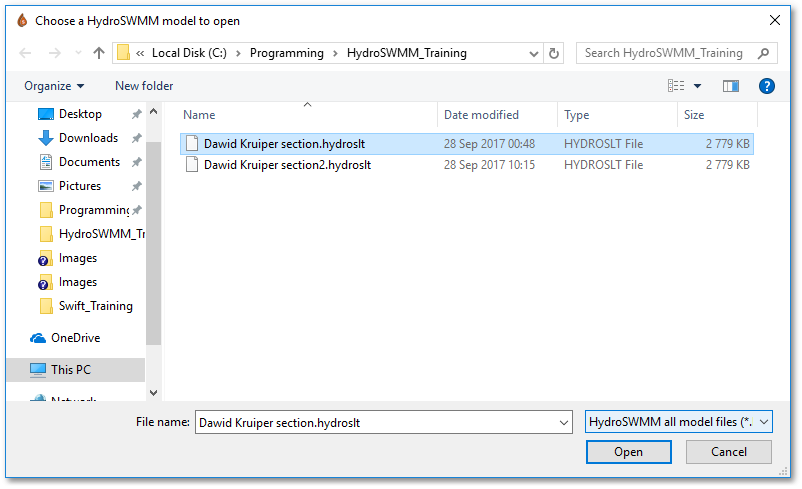
oAny previously saved model data (standard HydroSWMM zipped model file format or *.hlz or HydroSWMM normal model file *.hydroslt) can be opened via Manage Models > Load Model > As Active Model, which enables a Windows dialog box for file selection, as shown below:
•The Load Model function (accessed from the Quick Start box or from the menu) has options to either load in the model as active or inactive. When loading in as active, the model is the current (editable) model, whereas when choosing inactive, the model is only a backdrop model (not editable). Note, you can load in as many inactive models as you want.
•When there are one or more inactive models, a special (dynamic) sub-menu option will appear under Manage Models menu, viz. Change Active Model. You can use this sub-menu option to swap between the active and inactive model. Hereby an inactive model can be made active.

•Note, when there are two or more inactive models, the above Change Active Model sub-menu item will open the Manage Models box, in which the new active model can be chosen from.
•Also note, the Manage Models > Bulk Model List sub-menu item with the option Load Models from List is a useful tool to batch load several models. With this option the user can browse to a type of batch file, viz. Bulk Model List File (*.BMLF), which contains the file names and paths of the models to be batch loaded.