When the program is started up for the very first time, the user is prompted to select a default theme.

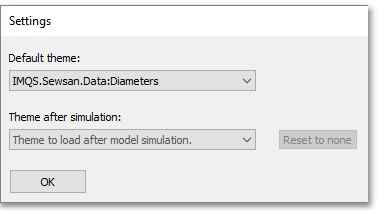
Click on the OK button from the above Sewsan6 box, then select IMQS.Sewsan.Data:Diameters as the Default theme from the first drop-down list of the Settings box, and then select OK. For now, we are ignoring the selection of a Theme after simulation, since you as the user want to have manual control over which theme is displayed.
The Quick Start (Sewsan 6) window appears automatically, allowing the user to load files from a previous session, or to create new files. More about this later. For now, we can ignore and close this window (which will be blank, as shown below, if it is the first time you start up Sewsan).
