The existing system is provided as a file Documents\GLS\Sewsan\Sewsan 6 - Tutorial Model_backup.slz during program installation. In order to ensure that the analysis part of the tutorial is done with the correct data, and to demonstrate the importing of previously saved data, we will now open this data file.
First, before opening the system data, ensure that the previously loaded model is closed via Manage Models > Close Model. Alternatively, exit and restart the program altogether.
The system data can be opened via Manage Models > Load Model. A dialog box will appear, with which you can browse to the Documents\GLS\Sewsan\ directory, and with which you can select the Sewsan 6 - Tutorial Model_backup.slz file. When this file is loaded, it replaces all the system data that was open before with the new information.
If the following message appears, it means that a model saved with a previous release version has been opened. As part of the Load Model function, all non-standard model fields are moved to the user tables for each of the model layers. It is also possible that internal settings tables were extended to allow for new functionality available in a new release version.
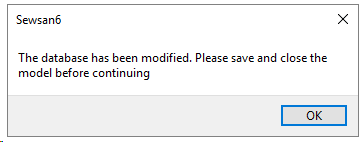
(Note that Sewsan 6 allows for opening of multiple models. Only one model is regarded as the “active” model, whereas the rest are regarded as “inactive”. The user can easily switch between “active” and “inactive” models. In the case of “inactive” models being present, the user might notice some specific related warnings and requests when loading and/or saving models. This advanced aspect is not addressed in this tutorial).