Overview
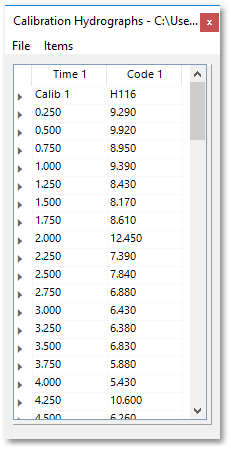
The Calibration Hydrograph table (accessible from main menu via External Data > Calibration Data > Edit) allows the user to edit the calibration hydrograph data loaded into the system. The latter can be accomplished with the External Data > Calibration Data > Load main menu item, which will open a Windows file dialog box for browsing to and loading in files of type Sewsan Calibration File (*.SAC). Calibration hydrograph data can also be loaded directly from within the Calibration Hydrograph table by applying the File > Open table menu item. Also note that when the external connections are set, the calibration hydrograph data file will automatically be loaded when opening the project.
Edits made in the Calibration Hydrograph table can be saved via the External Data > Calibration Data > Save As... main menu item, or alternatively use the File > Save table menu item (directly from within the Calibration Hydrograph table). The Calibration Hydrograph table menu has an export option to Excel (viz. File > Export to Excel) and columns can be added to or deleted by selecting from the table menu Items > Add New Item and Items > Delete Selected Item respectively.
Columns
The calibration data is displayed in pairs of columns, viz. (Time 1, 2, 3, etc.) (Code 1, 2, 3, etc.).
The first entry in the Time column contains the identification code of the calibration hydrograph.
The first entry in the Code column contains the code of the structure (i.e. the Structure Code) to which the hydrograph is linked.
The entries that following in the Time and Code columns contain the time and flow data pairs to describe the ordinates of the hydrograph. The time intervals may vary and need not match the simulation time interval.