When the program is started up for the very first time, the user is prompted to select a default theme.
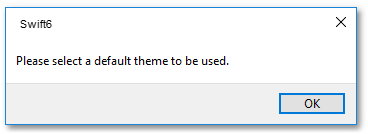
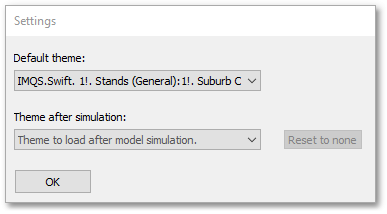
Click the OK button from above Swift6 box. Select 1. Stands (General): 1. Suburb Category from the first drop-down list of the Settings box and click OK. Ignore the selection of a default theme after a simulation for now since you as the user want to have manual control over which theme is displayed.
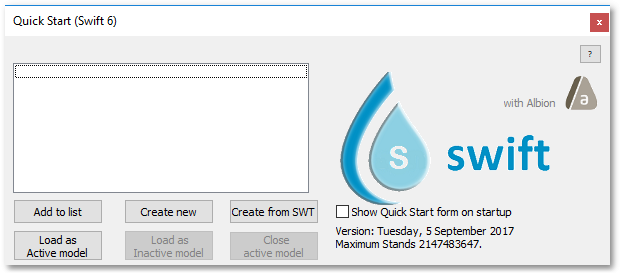
The Quick Start window appears automatically, allowing the user to load files from a previous session, or to create new files. More about this later. For now we can ignore and close this window (which will be blank as shown below if it is the first time you start up Swift).