First, we have an introduction on how to change a few global settings. From the main menu, navigate to Model Data > Model Settings, and select the tab labelled General on the form that appears.
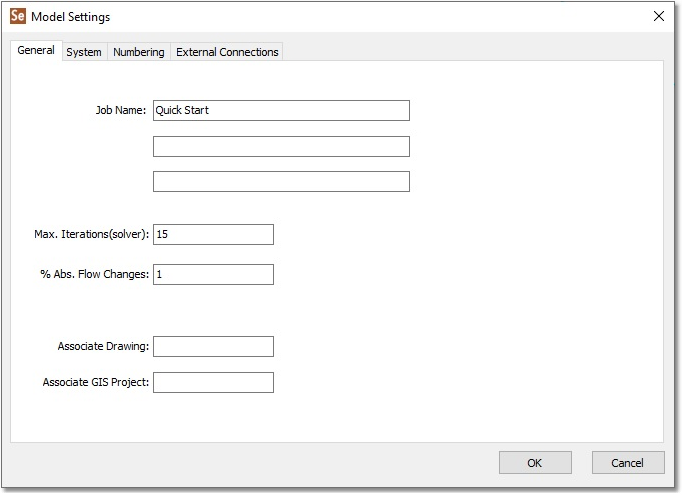
Various settings can be edited on this form, and the above values are only an indication of what might be needed. For the purposes of this Quick Start exercise, only add a Job Name (e.g. “Quick Start”), and ensure the following settings:
•Max. Iterations(solver) = 15
•% Abs. Flow Changes = 1
The second tab on the Model Settings form, labelled System, allows the user to assign default values to specific hydraulic properties. An option is also available to automatically split pipes that are longer than the allowed Maximum Length (m) specified. Ensure the following settings:
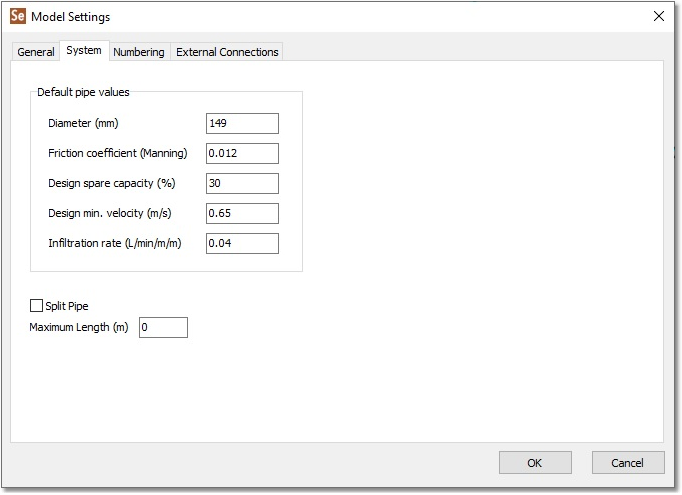
Then, click on the OK button to close the form.
Sewsan is installed with a series of themes that the user can select, in order to view the model. (Advanced users can add to or edit these themes). Navigate to File > Theme Settings > Default Theme Settings, in order to reveal the following settings:
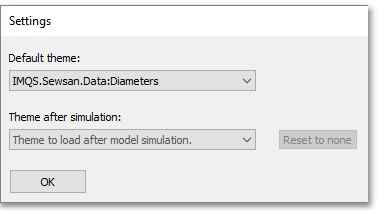
For now, we are not going to change the defaults, but it would also be sensible to set the Theme after simulation to IMQS.Sewsan.Analysis:Relative Spare Capacity. Click on the OK button to close this window.