Overview
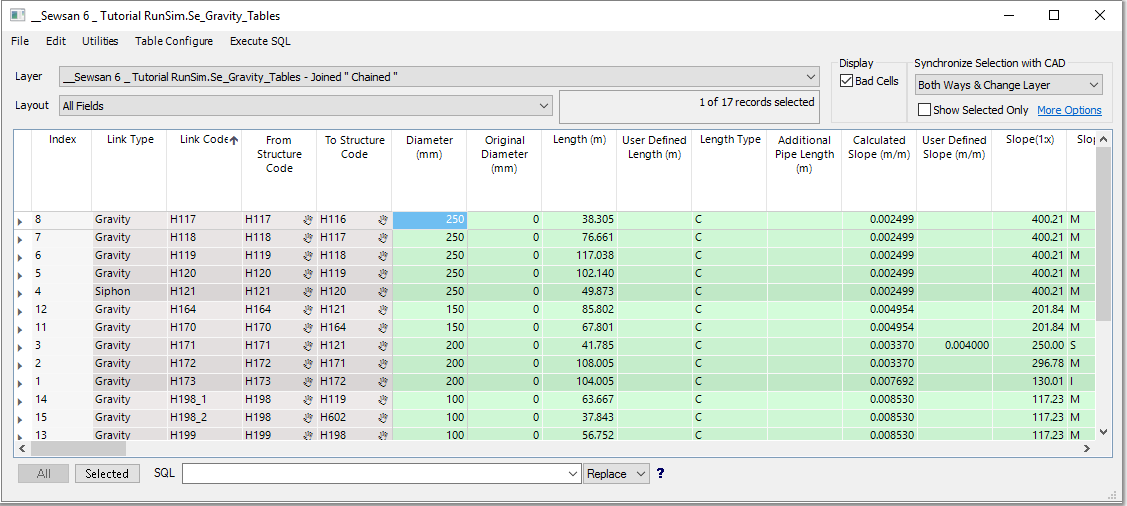
The Gravity Pipe table is accessed via Model Data > Model Tables > Gravity pipe. Alternatively, the  Edit Gravity Table toolbar button can be clicked.
Gravity pipe model data can be viewed/edited in the Gravity Pipe table. The link topology can be edited as well in the Gravity Pipe table, although it is recommended to rather make these edits in the Albion spatial environment.
The various columns/fields in this table are grouped together in categories (displayed in distinctive colours), similar to the various groups of fields found in the Database box of an individual pipe (see Editing links and structures in the Albion Environment). The grouping of fields and the formatting of the display (numeric format, background colour) can be set as a table “Layout” that can be saved and later retrieved. But a variety of such layouts are predefined and loaded at program installation, e.g. a “default” layout focusing on the data, a “results” layout focusing on the flows and velocities, etc. Regular Sewsan users can pick an appropriate layout and do not have to bother with creating and specifying their own customised layout.
In the “default” layout the first four columns (also referred to as a field group) display the Topology info. The next 12 Hydraulic columns are the system data fields, required for hydraulic calculations. Then there are Hydraulic SWMM (these fields required only for an SWMM analysis), Design Data, Physical, Descriptive, Results, Results (Design), Planning and Assets groups. The final five groups are: Integrity; GUID and Geometry; Selection; Client Specific and lastly Results (Time Series).
For a description of the general table functionality refer to the Albion 6 GIS User Guide.
The most significant fields in the Gravity Pipe table are described below according to the above-mentioned field grouping:
Columns
The columns (also referred to as fields) are described in the Pipe Field Descriptions.
Topology
Hydraulic
Design Data
Physical
From Ground Level
To Ground Level
Assets
A typical data entry in the Gravity Pipe table may look as follows (excerpt showing first 10 columns only):