A range of predefined themes are loaded on program installation, and should be sufficient for almost all users - however changes to the theme settings can easily be made as will be shown in this section.
To change the display theme click on the 1. Stands (General): 1. Suburb Category label (which is currently the default theme).
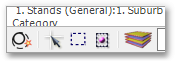
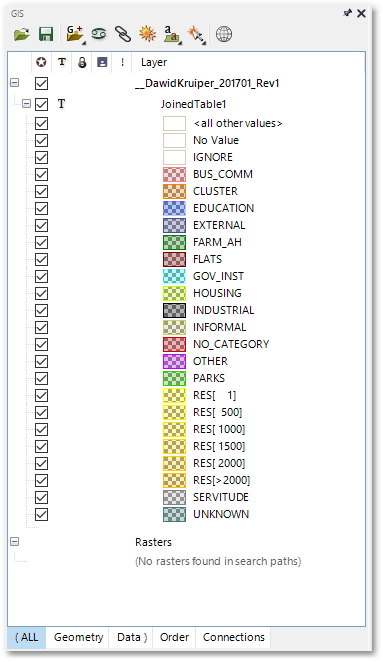
A list of themes will be shown which can be selected to change the current theme. For e.g. if you select 1. Stands (General): 2. Landuse Categorisation from this theme selection menu, the GIS Layer Manager will be changed to reflect the new display settings (which now themes the landuse categorization, as follows):
The  Swap Theme toolbar button allows the user to quickly revert to the previously used theme without the need to select from the above-mentioned theme selection menu. Please note, the Swap Theme toolbar button will be implemented in the next Swift version.
The Model Theme Manager box, for setting up the active model theme display, can be shown by selecting File > Theme Settings > Theme Manager. Alternatively, the  Active Model Theme Manager toolbar button can be clicked. The Model Theme Manager box below, shows the settings for the 1. Authorised Comsumption theme:

All the themes in the project are listed in the left Themes pane. The Layers pane on the right-hand side lists all the model layers to be displayed as part of the theme. The display settings of these layers can be changed (to convey the theme according to user-defined preference), by clicking on the Render, On/Off, Lock, Edit and Scale icons. These icons change the render settings, visibility of the layer, locking status and display scale levels as described in the GIS Layer Manager section of the Albion 6 GIS User Guide.
The default theme to be loaded during program start-up (usually the 1. Stands (General): 1. Suburb Category theme) can be changed via File > Theme Settings > Default Theme Settings from the main menu to reveal the following settings:
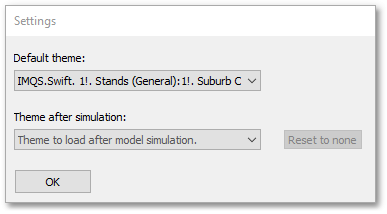
The two drop-down lists provide a list of all the available themes to be loaded at start-up and after model simulation respectively.
The Reset to none button can be clicked to deactivate the automatic theme loading if the user prefers manual control over which themes are to be displayed.
The display of themes is described further in more detail when discussing the Basic System Display.