Selected stands can just as easily be updated in the Database box as for individual stands. Simply use the Albion selection tools to select certain stands in the model and then conduct the edits on the selection set (i.e. group editing) via the Database box. The Albion selection tools consist of spatial selection functions as well as tabular selection functions such as filters, SQL queries, etc. (see Albion 6 CAD and Albion 6 GIS User Guides for more detailed description of these functions).
For instance: The user wants to assign a Land_Category of RES[ 500] to all stands in a specific suburb/area of the system (i.e. to do stand data capturing). The procedure is as follows:
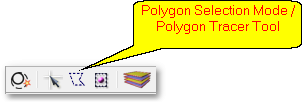
•Choose the standard Albion polygon selection mode and use the polygon tracer tool (see below) to select all stands within a polygon traced around the suburb boundary. (After selection they will be highlighted and will constitute the model selection set).
•Alternatively, if only a few stands are to be selected then you can simply left-click on the first stand and then Ctrl+left-click on all other stands that should be selected. (After selection they will be highlighted and will constitute the system selection set).
• If the Database box is not already open, then hover over the  Database icon to open it (note the box can also be pinned, see Albion 6 GIS User Guide). In the Database box, select from the Layer drop-down list the layer with extension .el_loads).
To add stand data:
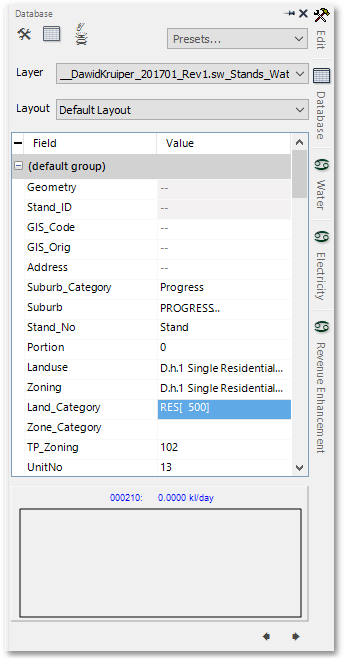
•In the Database box scroll to the Land_Category field (see screen-shot below).
•Enter a new text string for Land_Category, viz. RES[ 500]. Hereby all the stands in the selection set will get assigned a Land_Category of RES[ 500].
•Notice (when scrolling back to the start/top of the Database box) the dashes at the Stand_ID, GIS_Code, GIS_Orig and Address fields. This is to indicate the selected stands have different values for these data fields (i.e. instead of showing a particular value for these fields, a dash is more appropriate to display).