There are various ways to edit the system data. In particular, what is required for this example is to input the pipe diameters.
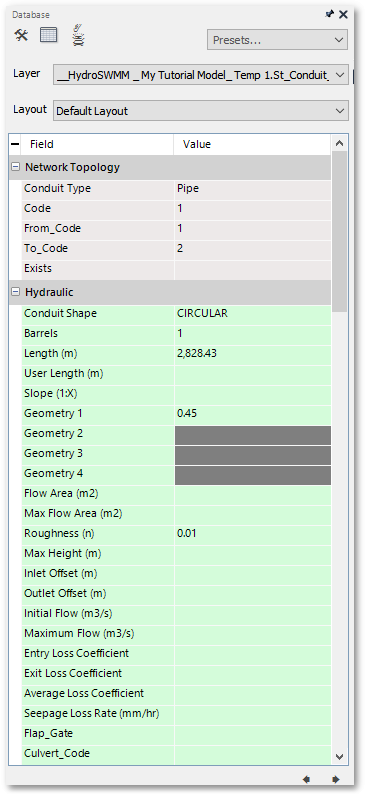
The first method to edit pipe data is to click on a pipe and edit its pipe diameter in the database properties editor (also referred to as the Database box). This Database box can be opened when hovering over the  Database icon (located on the rightmost vertical toolbar, see below). Here we will find all the information about the currently selected item (i.e. the GIS database-entry). To pin this box to the interface, click on the
  Pin icon situated in the top RH corner of the box (see below).

The properties to be edited for this example are the Conduit Shape, number of Barrels and dimension (Geometry 1 - 4). All of the conduits in this example are circular, single-barrel, enclosed stormwater pipes. Hover over the data box next to Conduit Shape under the Hydraulic header, a drop-down list will appear, select "CIRCULAR".
As this is a basic, single-barrel system, the number of Barrels will be 1. The Geometry rows will display 3 green cells and 1 grey cell, only the green cell is relevant to this conduit shape. Geometry 1 pertains to height and Geometry 2 to length. For Conduit 1, this are 0.45 m, with the remaining fields left blank (and greyed out). The Manning n roughness for all conduits in this example is 0.01.
The same process can be repeated for the remaining conduits.
Finally we can edit the diameter of the conduits by editing the Diameter (mm) field to 450 (the unit is mm) for the first conduit . Edit the diameter of the remaining conduits . The Length field will be auto-completed by HydroSWMM based on the coordinates of the Junctions, as will other fields such as Slope, Flow Area, once those details are added to the model.
The second method also uses the Database box but here we multi-select conduits to edit the common diameter. So, click on Pipe 1, then Ctrl + click on Pipes 5/6. All 3 pipes are selected. The Database box is now common to all 3 pipes, and corresponding data appears in the fields. Where data is not common, two hyphen appears. This value (blank) can be overridden in the Database box by typing in 450 for the Diameter (mm) field value, followed by pressing Enter on the keybaord. All 3 pipes will be updated with this diameter.
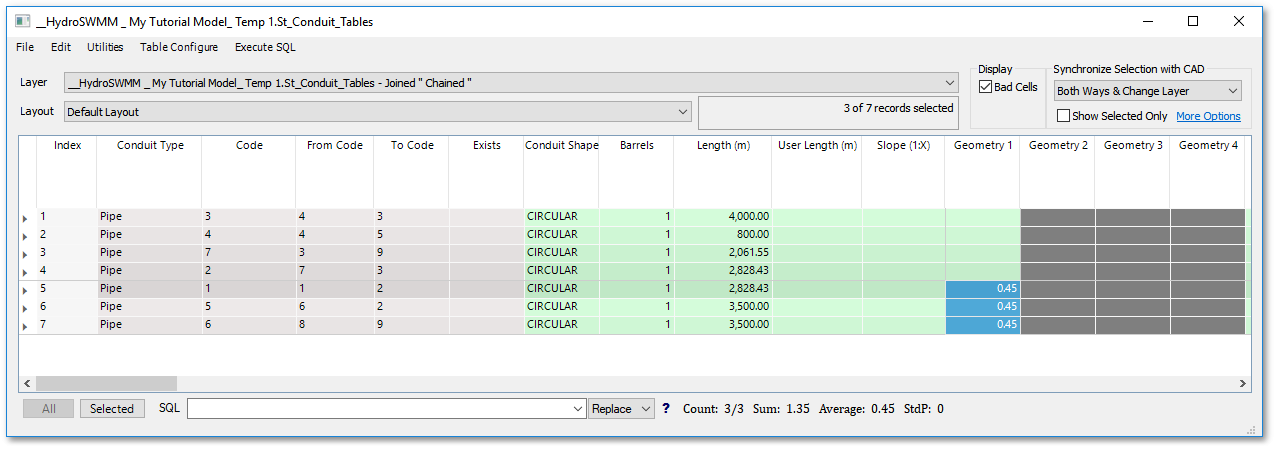
The third method is to enter the diameters in the grid editor.
Double click on St_Conduit_Tables to open the Conduit table. On the map, use Ctrl + click to pre-select Pipes 1/5/6. The selected pipes will be highlighted. This value (blank) can be overridden in the Database box by typing in 450 for the Diameter (mm) field value, followed by pressing Enter on the keybaord. All 3 pipes will be updated with this diameter.
Use a method of own choice to enter the remaining pipes.