Items under Main menu > Manage Models provide access to the file handling functions to manage HydroSWMM models:
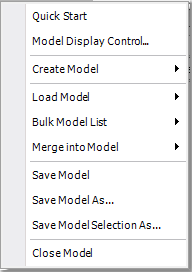
•Quick Start opens the Quick Start box to create a new model or select a model to load in from a list of previously loaded models. The Quick Start box also shows information on program version such as version date, the number of links and enabled modules.
•Model Display Control... opens a form that gives you the ability to select which of the loaded models should be shown on the current drawing.
•Alternatively, you can use Create Model and Load model sub-menu options to create/load a model.
•Note that more than one model can be loaded during a session, viz. one active and unlimited amount of inactive models. There is a dynamic menu which will then appear to switch between the models.
•Bulk Model List can be used to open multiple models automatically (i.e. batch load the models). There is also an option to save all the currently loaded models into a type of batch file.
•Merge into Model has options to import a model from GIS or import a model from the EPASWMM software package (i.e. importing a SWMM INP model file).
•Save Model saves the active model under the current file name. Note some individual data files that form part of the project can also be opened/saved via the specific file handling functions available under the Cost Data main menu items. Also note when there is no existing model file, Save Model acts as Save Model As... (see below).
•Use Save Model As... to save the active model under a new file name.
•Save Model Selection As... saves the current selection of the model.
•Close Model, closes the model.