In this section, we will edit the manholes to more accurately reflect the information provided by the CAD drawing.
It should be noted that Manhole H121 has automatically been set to an ‘End Manhole’, as it is the last manhole in the system. As such, it has no downstream pipes.
The first method to edit structure or manhole data is to click on the structure/manhole, and edit its data in the Database panel editor. This Database editor can be opened when hovering over the  Database icon (located on the rightmost vertical toolbar, as shown below). Here, we will find all the information about the currently selected item (i.e. the GIS database-entry). In order to pin this editor to the interface, click on the
 Pin to prevent auto hiding icon, situated in the top right-hand corner of the editor.
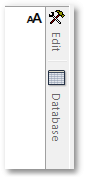
In order to edit the manhole code, select the manhole where the CAD text is displayed as “H164” (in red, on the SEWER_CODES layer), by left-clicking on it. The manhole’s information will be displayed in the Database editor (shown below) that can be seen on the right-hand side of the program window. If the Database editor is not visible, then simply hover over the Database icon.
In order to assign the correct code to the manhole, enter H164 into the Structure_Code field, and press Enter/Return, as shown below:
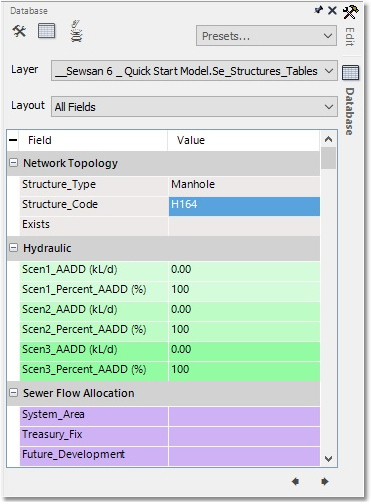
This will change both the manhole code and the code of the downstream pipe to H164. The same process can be followed to rename the remaining manholes with the codes displayed in the drawing.