The same requirements for a normal Time Simulation apply to the Planning Analysis, with the additional requirement of a cost function file. A cost function contains all the available entity options that can be chosen, with associated costs for planning purposes.
From the main menu, navigate to Cost Data > Load Cost Data, select Yes at the prompt, and browse to the file Documents\GLS\Sewsan\Tutorial_Costs.sqlite. Close the form that opens automatically (this table contains cost definitions for base year, and surcharges to be applied in operations for advanced users, and will not be covered in this tutorial). The cost data file contains several tables, with costs associated to various entity parameters. For example, the Gravity Main Cost Definition table shows several diameter options that the analysis procedure can choose from, and depending on the cost function value, a cost can be determined and compared to other options. In order to view the gravity pipe cost data, select from the main menu: Cost Data > Cost Data Tables > Gravity Pipes. The following table will appear:
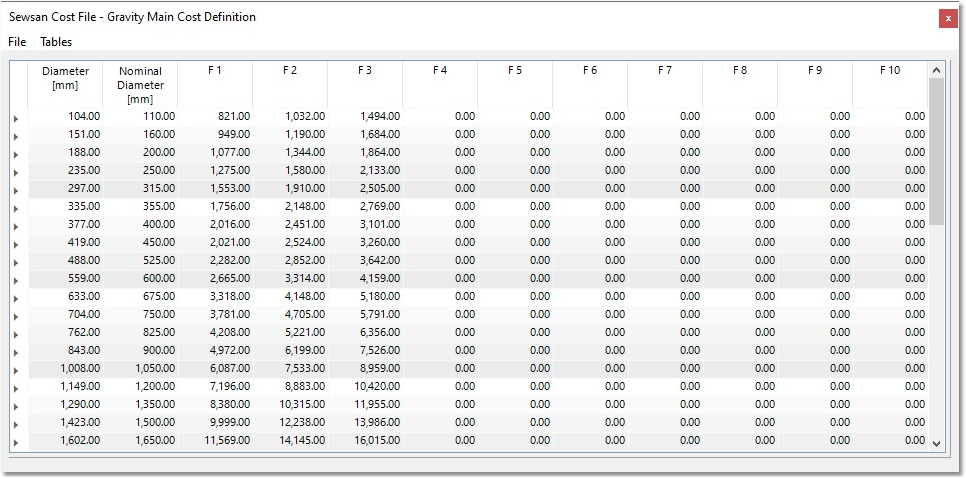
Three of the possible 10 cost functions (F1 – F10) are defined, for both the gravity pipe and rising main tables. The diameter and cost of a new pipe are determined by looking up the required diameter (as determined in the analysis) in the cost function table, and returning the smallest applicable diameter, i.e. greater than or equal to the required diameter, and the appropriate corresponding cost. For this example, the functions are as follows:
•F1 – Open space
•F2 – Road reserve
•F3 – Road
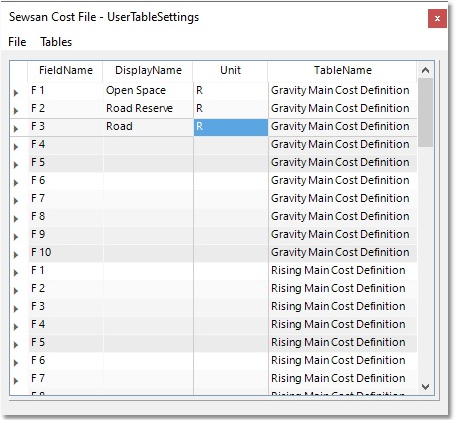
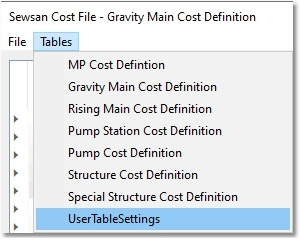
The display text, or so-called ‘display names’ for F1 - F10, can be edited from the UserTableSettings table, contained in the cost file.
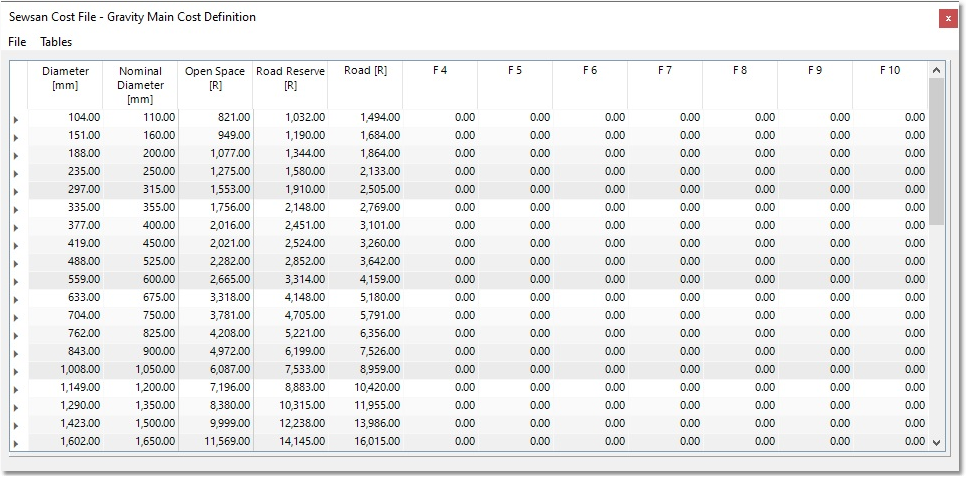
This special settings table contains a list of all the field names, i.e. F1 - F10, for each of the separate cost tables. The user can override the field name with a display name of their choice, with an additional option to have a cost unit suffix added. The unit suffix will be displayed in square brackets. See the example below for editing the table, and the result thereof.