The cover level information in the structures table can be updated in a similar fashion as explored for pipe diameters. An alternative method to import information into the model, namely Spatial Correlation, will be explored in this example.
From the main menu, navigate to GIS > Tools > Spatial Correlation. Proceed to ensure that the settings are as shown in the image below, and select OK (refer to the Albion Help for more guidance on the Spatial Correlation function):
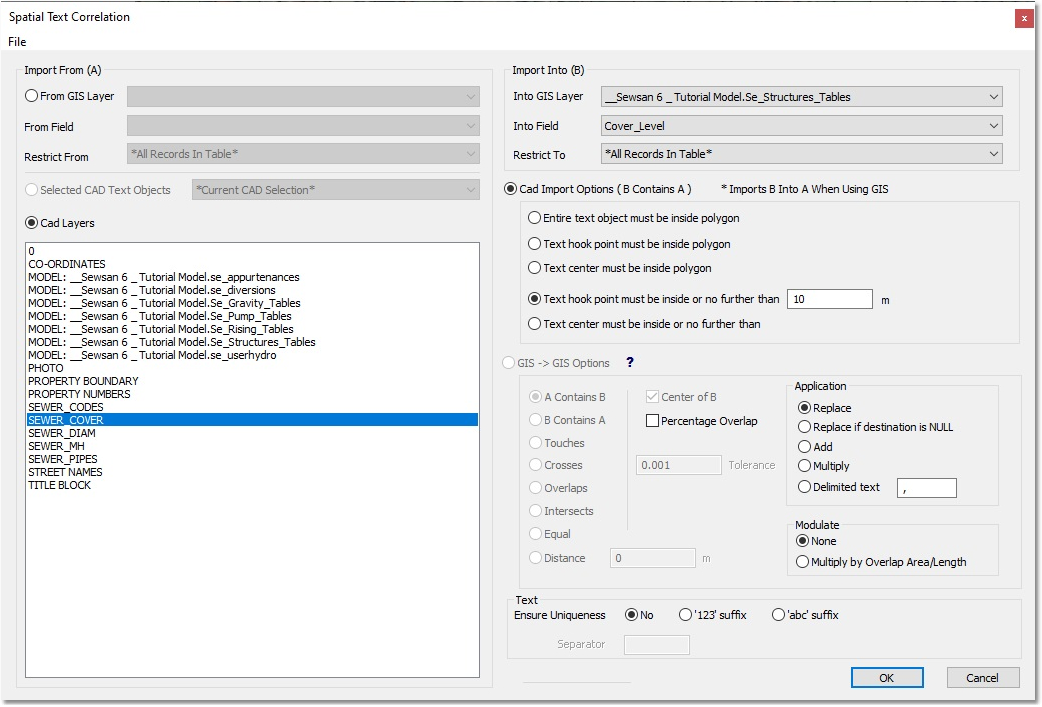
With this function, the closest text items on the SEWER_COVER layer will be imported into the Cover_Level field, in the Se_Structures_Tables layer of the model, if the text is within 10 m of the structure. For this example, 15 out of the 18 structures will be populated with a cover level value. Note that the From_Cover_Level and To_Cover_Level values in the Se_Gravity_Tables table have automatically been updated.